
Full Installation
This tutorial walks you through setting up, configuring, and running the full NEPI Docker container on a suitable edge processor. This is a more comprehensive setup than Docker Lite and is recommended for production deployments.
What you will need
1) 1x A monitor, keyboard, and mouse connected to the host system.
NEPI Docker User Setup
This section creates the nepihost user account and prepares your device to install NEPI Docker by cloning the NEPI setup repository that contains the required installation scripts.
1) Log into a user account with Administrator privileges, or use the existing nepihost account if available.
2) Open a Terminal window: right-click the desktop / Open in Terminal
3) Confirm your system has internet access by running the following command:
ping -c 1 google.com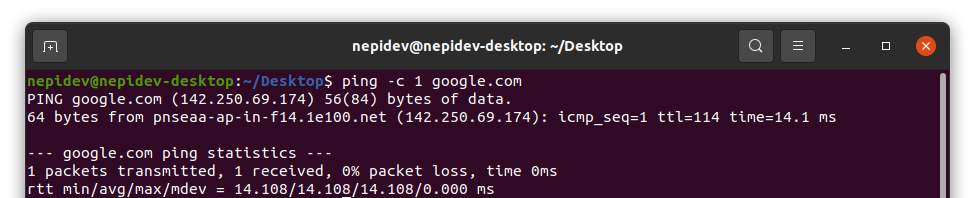
4) Update Git application (sudo password is '#Nsetup4You'):
sudo apt update && sudo apt install -y git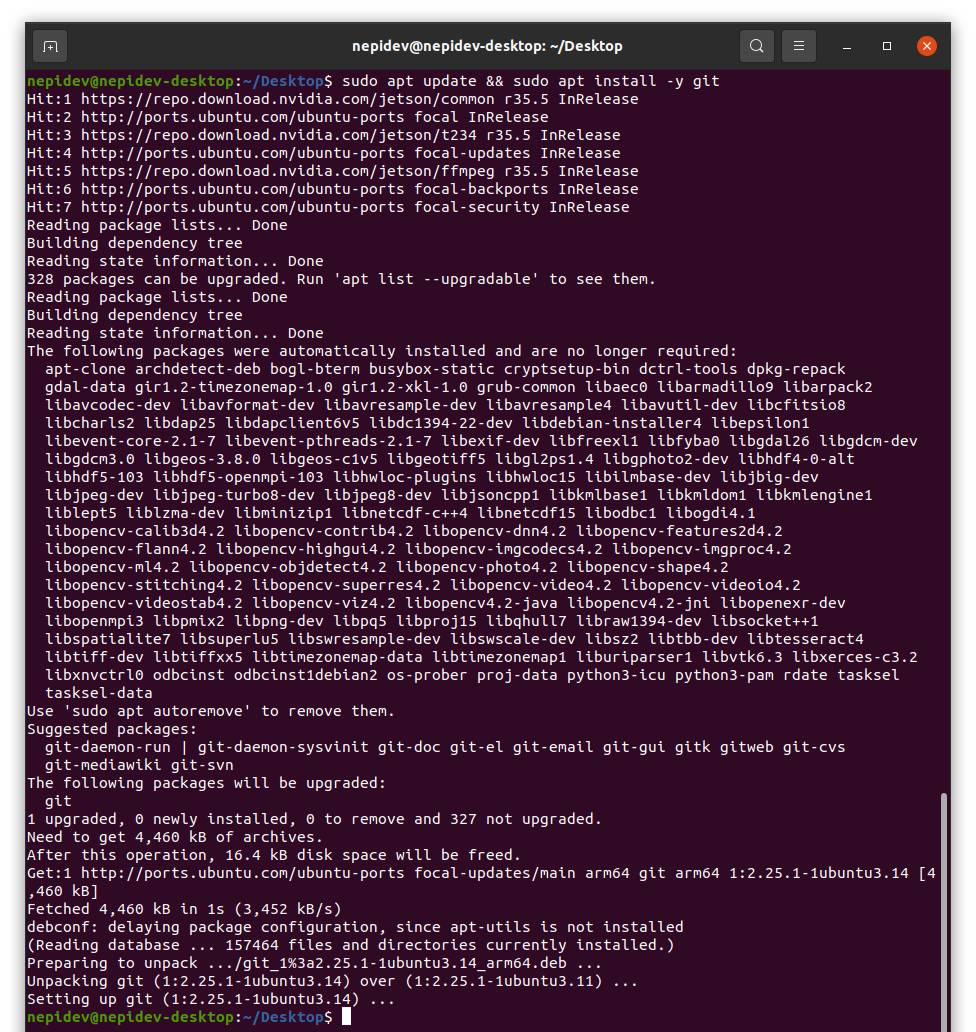
5) Clone the NEPI setup repository:
cd /home/${USER}
git clone https://github.com/nepi-engine/nepi_setup.git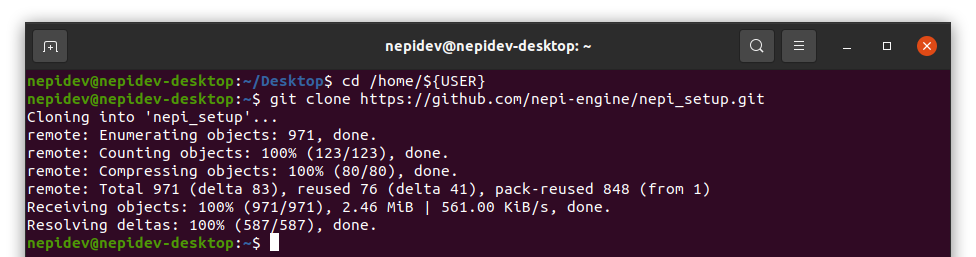
6) Run the NEPI Docker user setup script (sudo password is '#Nsetup4You'):
cd /home/${USER}/nepi_setup/scripts
sudo suThen:
./docker_user_setup.sh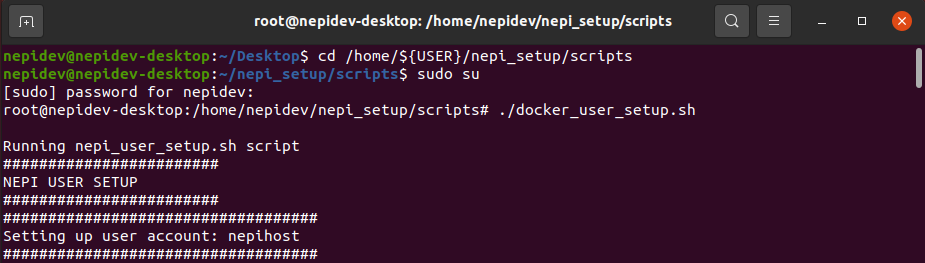
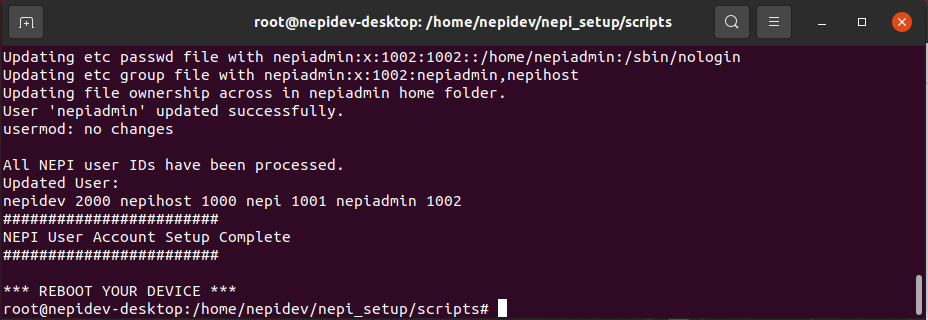
7) Power cycle your system when complete to apply the new settings.
NEPI Docker Environment Setup
This section will set up the NEPI Docker required software environment.
1) Log into the nepihost account created in Docker User Setup.
2) Run the NEPI Docker environment setup script (sudo password is 'nepi'). If prompted, enter 'y' or 'yes':
~/nepi_setup/scripts/docker_env_setup.sh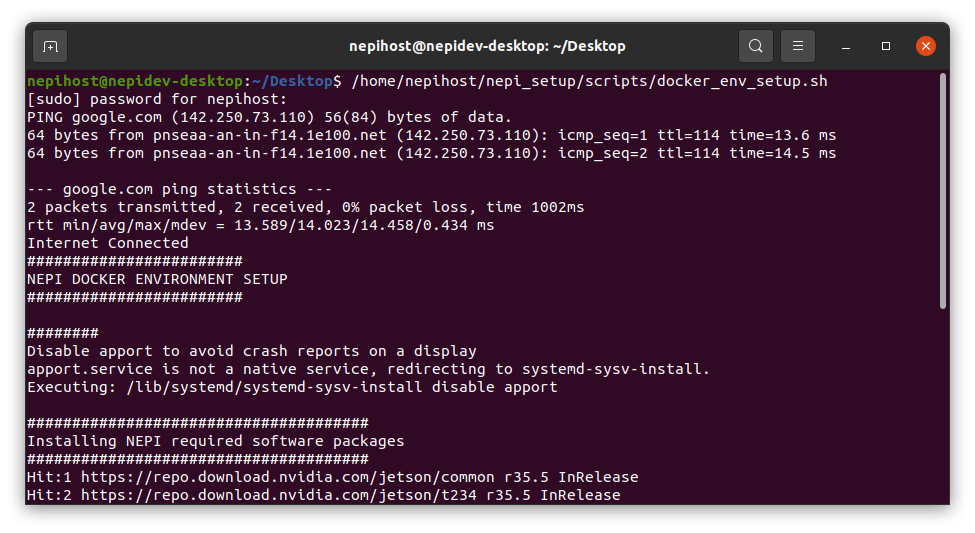
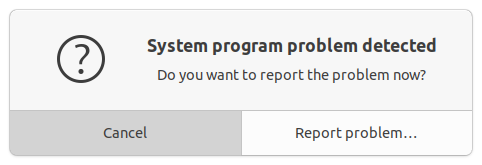
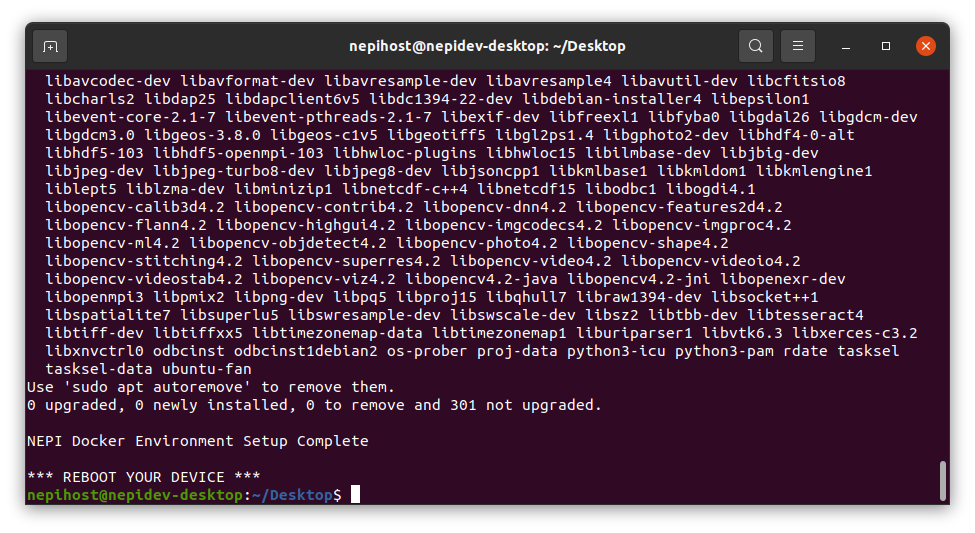
3) Once the script completes, scroll through the terminal output and verify there are no errors.
4) Power Cycle your system when complete.
NEPI Docker Config Setup
This section will configure the NEPI Docker configuration using the default settings.
1) Log into the nepihost account (sudo password is 'nepi').
/mnt/nepi_config- minimum 200 MB
Create these partitions before running the next setup step.
2) Run the NEPI configuration setup script (sudo password is 'nepi'):
source ~/nepi_setup/scripts/docker_config_setup.sh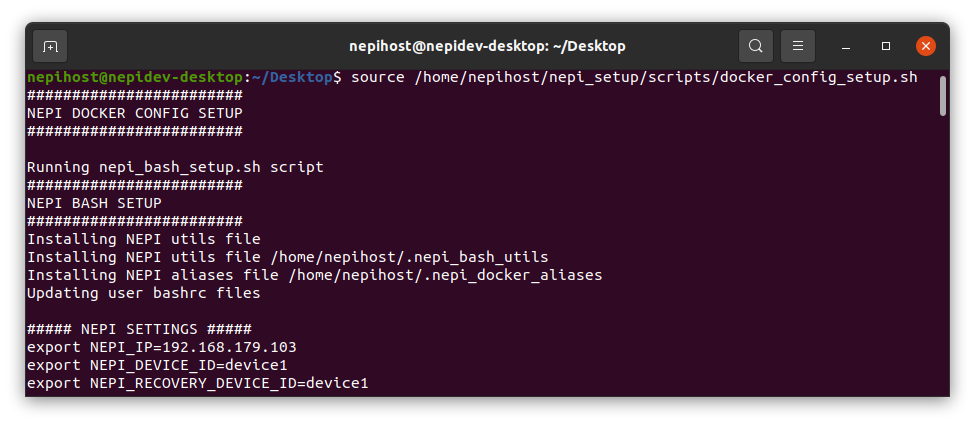
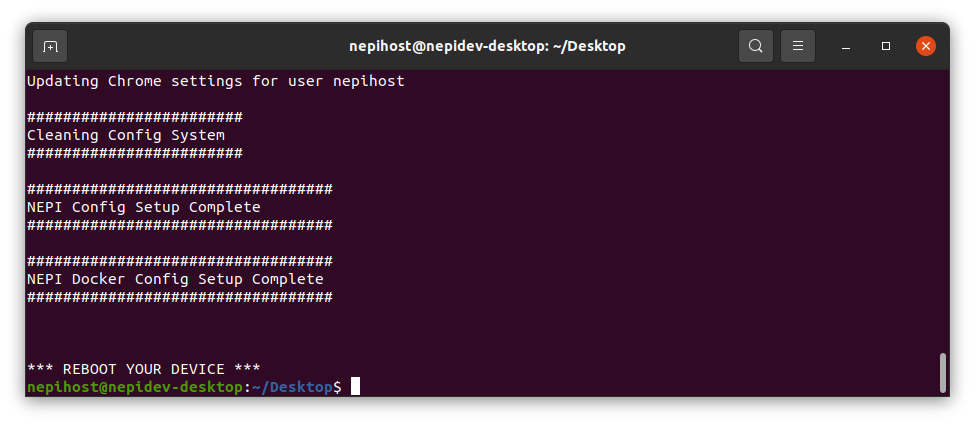
This process will create the following NEPI Folders:
- NEPI Storage folder created at
/mnt/nepi_storage, along with several user subfolders for saved data, AI models, import/export Docker images, and user saved configurations.
3) Test that you can reconnect to the internet and sync clocks:
ninet4) Check for internet connection:
pingi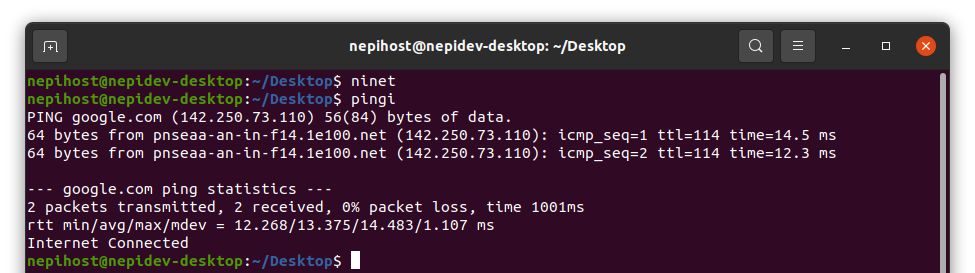
5) Power Cycle your system when complete.
NEPI Docker Init Setup
This section will initialize and test your NEPI Docker solution.
1) Log into the nepihost account (sudo password is 'nepi').
2) Enable internet connection and sync clocks:
ninet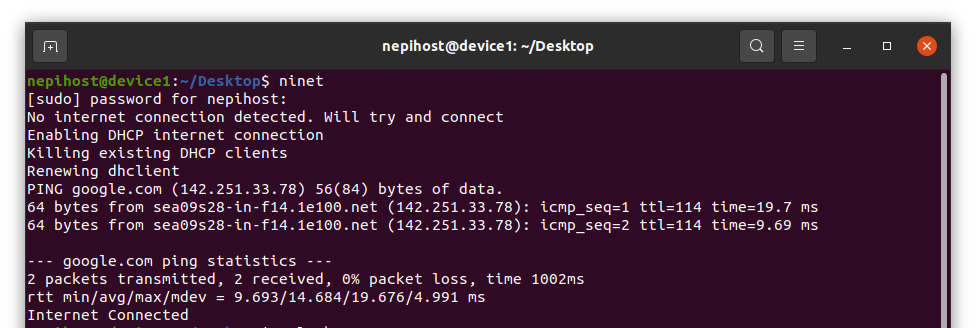
3) Check for internet connection:
pingi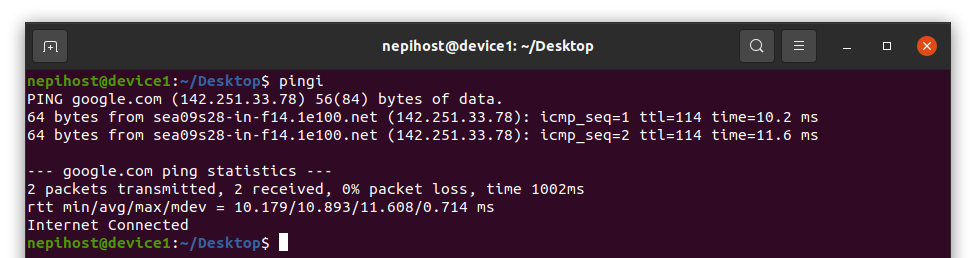
4) Run the Docker storage initialization script (sudo password is 'nepi'). If prompted, enter 'y' or 'yes':
source ~/nepi_setup/scripts/docker_storage_init.sh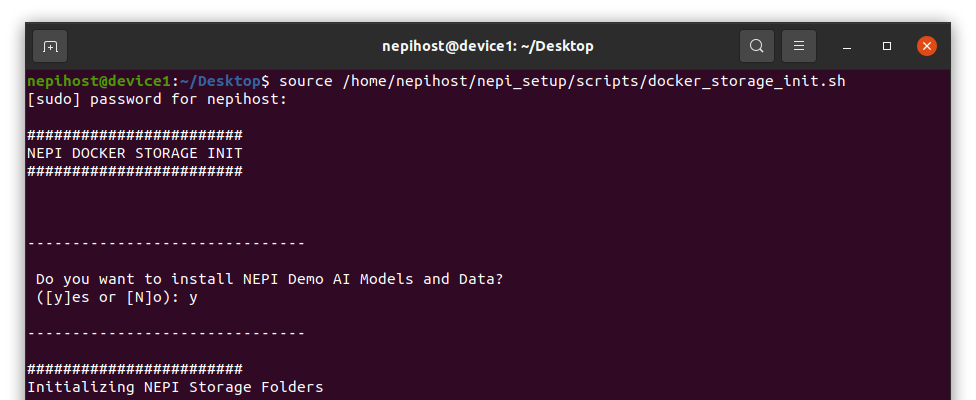
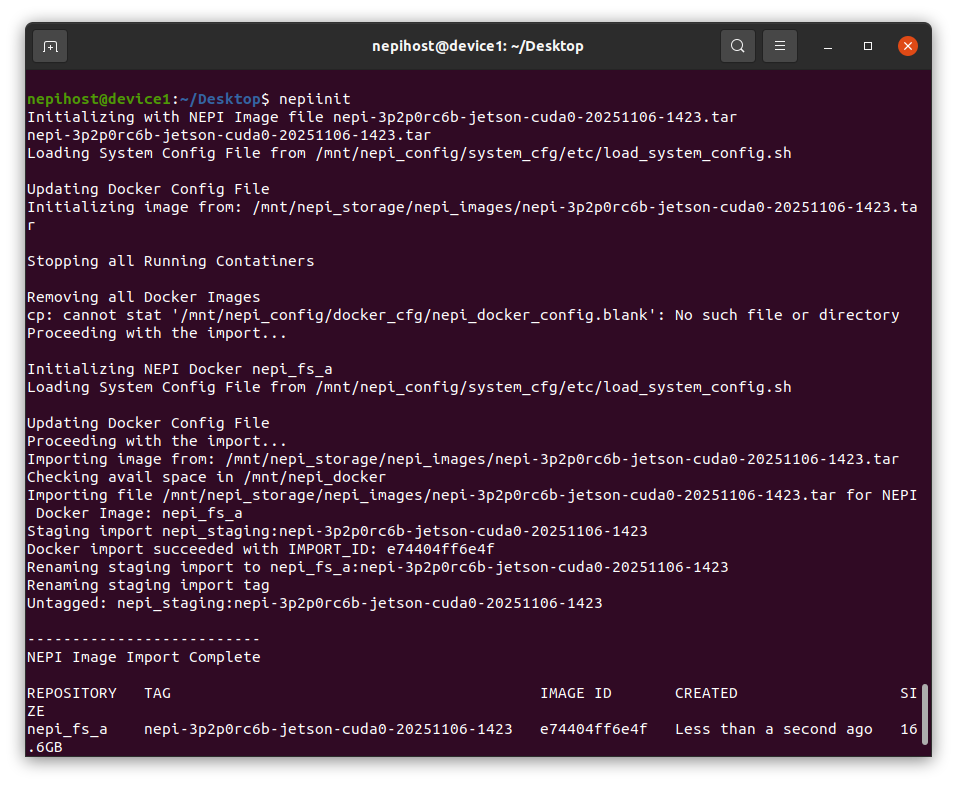
5) Initialize the NEPI Docker image installation:
nepiinitThe script will display the NEPI images currently installed.
NEPI Docker Image Testing
This section verifies that the NEPI Docker container runs successfully and that the NEPI Resident User Interface (RUI) launches correctly.
1) Start your NEPI container running:
nepistart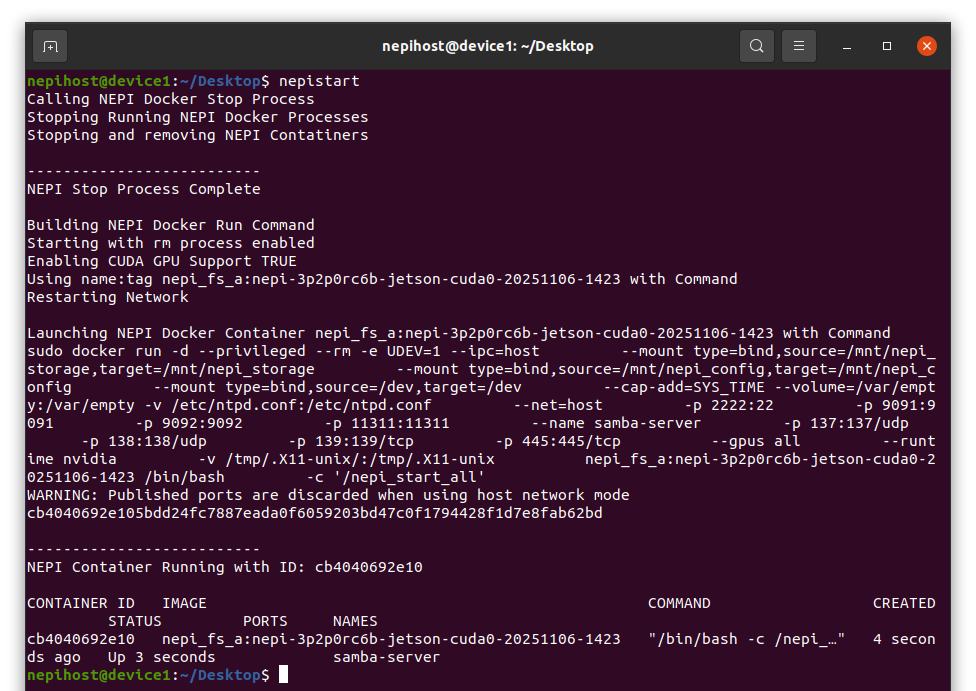
2) Wait for the startup confirmation message.
3) Open Chromium browser and enter: localhost:5003
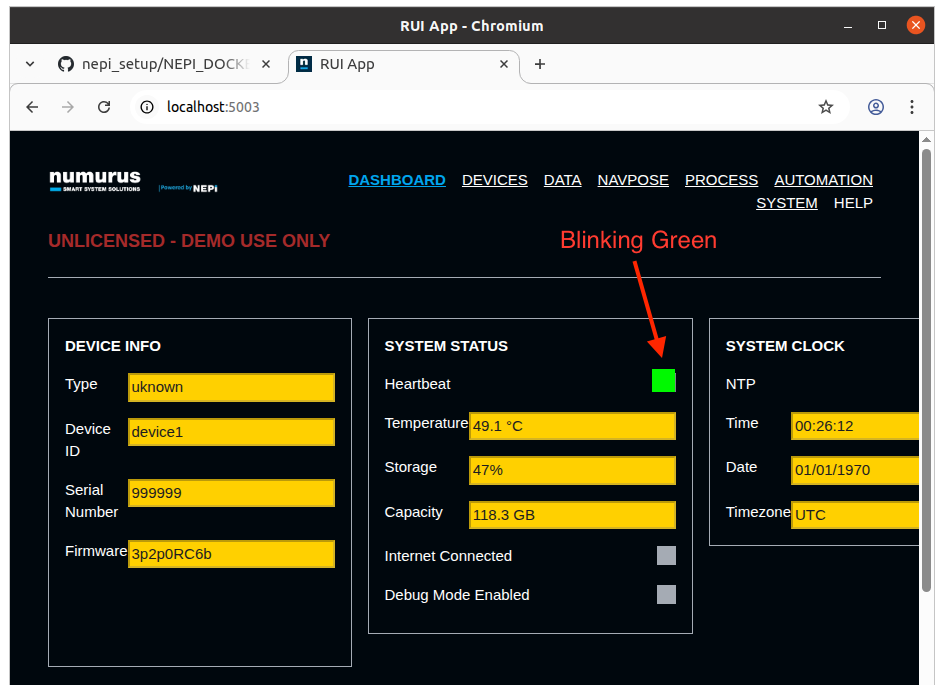
4) Confirm that the NEPI RUI dashboard loads and shows a blinking green indicator, signaling that NEPI is active.
NEPI Docker Service Setup
This step enables NEPI to automatically start whenever the system boots.
1) Enable NEPI Docker service:
nepienable
2) Power Cycle your system when complete.
3) Log back into nepihost (sudo password is 'nepi').
4) Verify that your NEPI Container is running after reboot:
dpsDebugging and Shortcuts
If your container is not running, try to debug NEPI Docker Service issues with the following commands:
nepirestart
nepistatus
nepilogsFor detailed debugging instructions, refer to the official GitHub setup guide: NEPI Docker Host Setup Instructions on GitHub.
View all NEPI Docker command-line shortcuts anytime by typing:
nepihelp