
Getting Started With the GL.iNet Router
These instructions assume you have NEPI Engine software running on your computer and an Ethernet enabled edge-compute hardware platform.
Power On
Follow these steps to power on your devices before connecting.
- Plug in the power cables for both the GL.iNet router and the NEPI device. It may take a moment for the GL.iNet Wi-Fi to appear.
Default Wi-Fi Name and Password
Your device broadcasts a Wi-Fi network using the following default credentials.
- Wi-Fi Name (SSID): NEPI_DEVICE1
- Wi-Fi Password: nepi#12345
- GL.iNet Admin Panel Password: nepi#12345
- NEPI Device Host Password: nepi
Connect
On your computer, go to your Wi-Fi settings and connect to the NEPI_DEVICE1 network using the Wi-Fi password above.
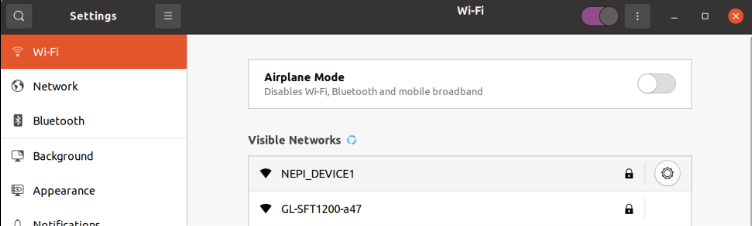
Open the Admin Panel
Use a web browser to open the GL.iNet admin panel.
- Open a web browser and go to http://192.168.179.1/.
- Log in using the admin panel password nepi#12345.
Set Up Repeater
The repeater connects the GL.iNet to an existing Wi-Fi network so it can provide internet access. After logging in, you will see the admin panel home page.
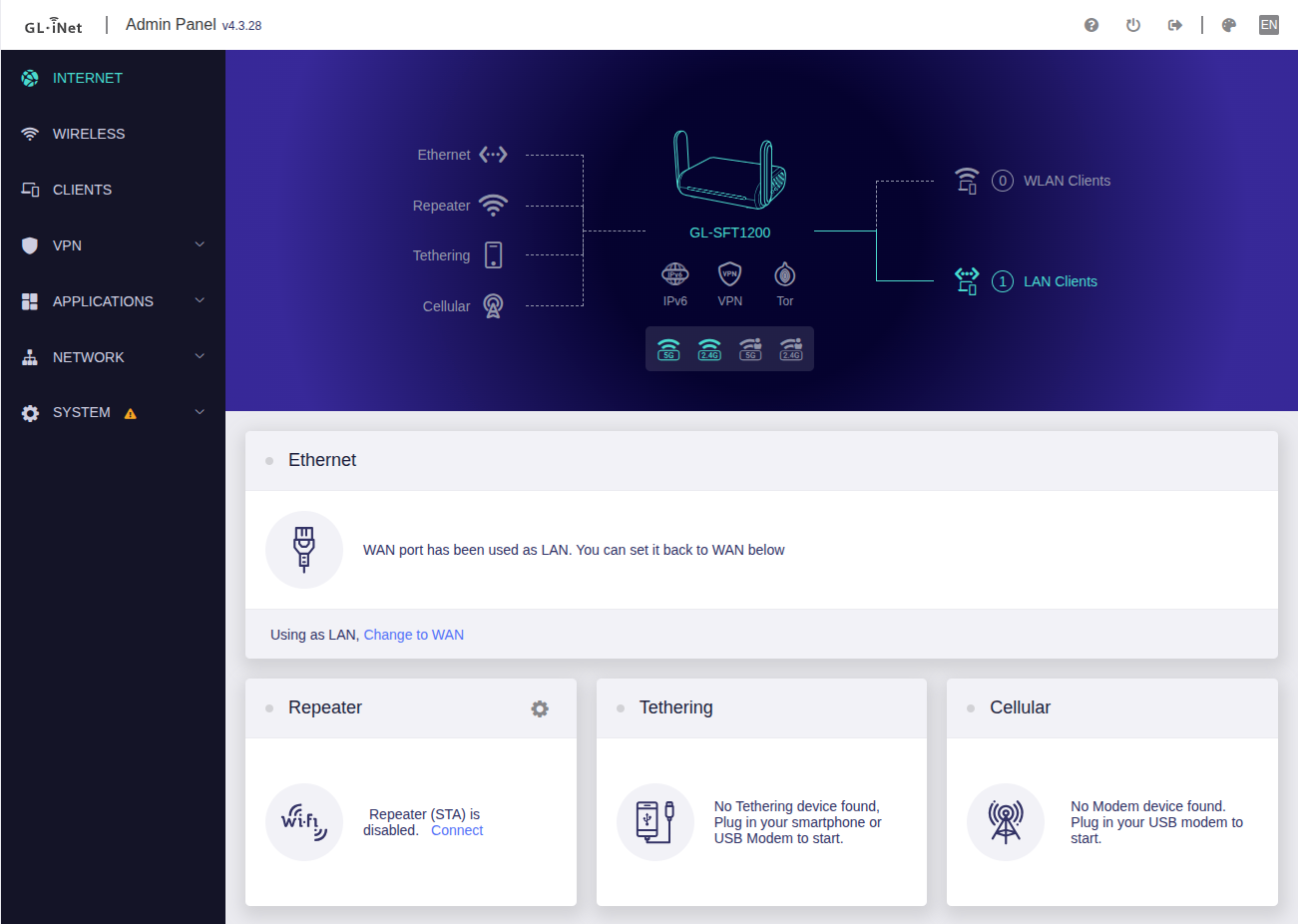
In the Repeater section, click Connect.
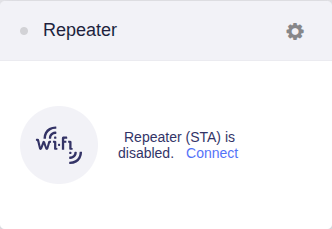
A list of available networks will appear. It may take a moment for networks to be detected.
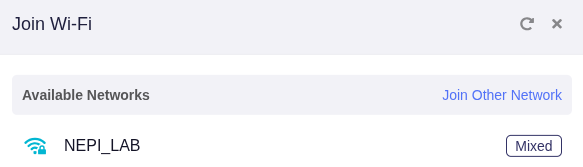
Select the Wi-Fi network you want to connect to, enter its password, then click Apply. Wait for the GL.iNet to finish connecting. You can ignore any warning messages that appear while it loads.
When the connection is complete, you will see the page below.
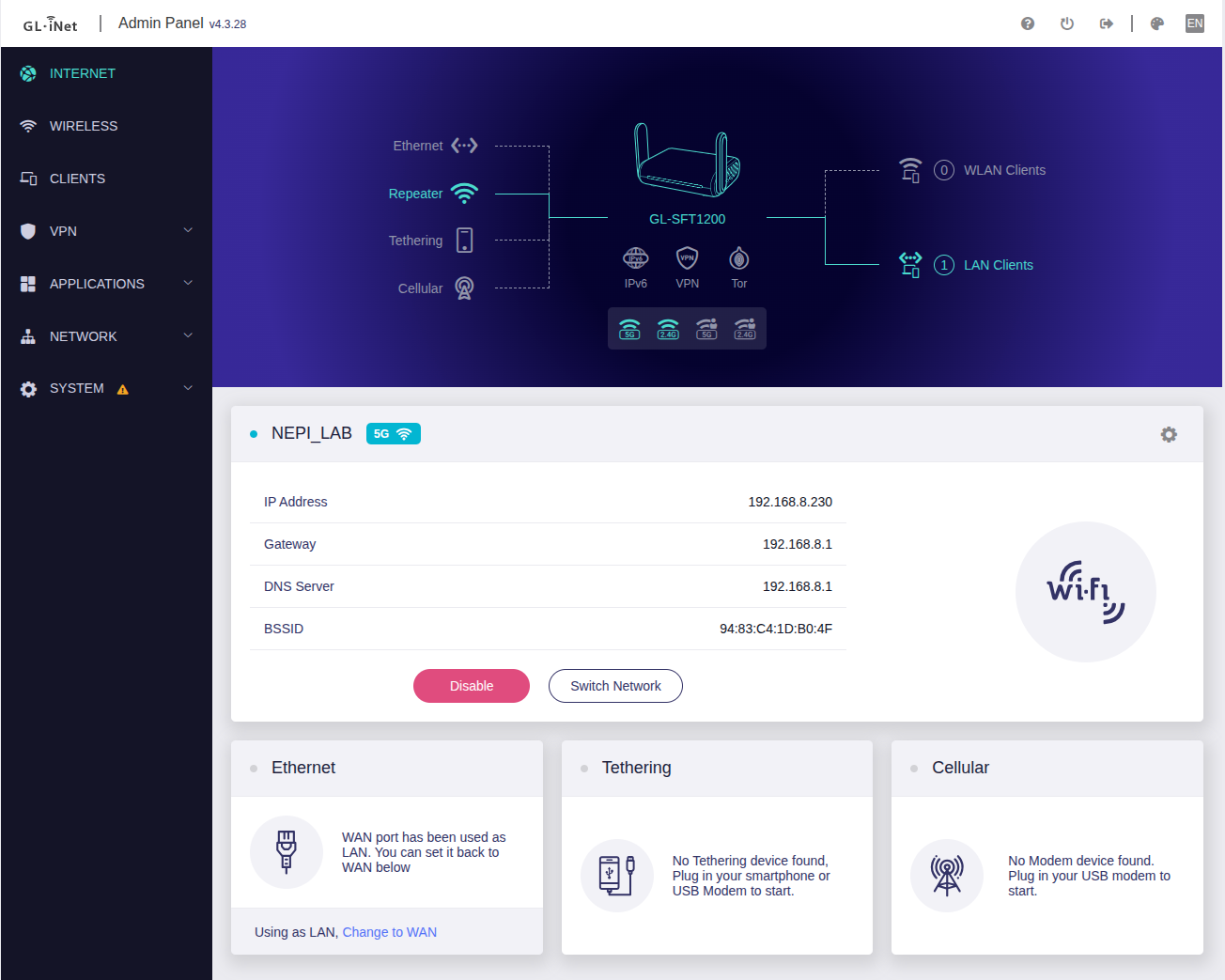
The repeater is now set up.
Connect Ethernet Enabled Edge-Compute Hardware Platform
Move the Ethernet cable from your computer to your NEPI device.
- Unplug the Ethernet cable from your computer. This disconnects you from the admin panel, which you won't need again, so you can close that browser tab.
- Plug one end of the Ethernet cable into your NEPI hardware and the other end into the LAN port on the GL.iNet.
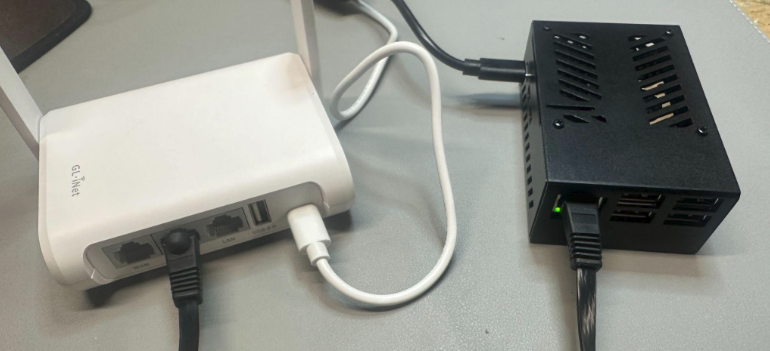
Your computer stays connected to the NEPI_DEVICE1 Wi-Fi network. This gives your computer internet access through the network you selected when setting up the repeater, and connects it to the NEPI device through the GL.iNet's Ethernet connection.
Test Your Connection
Open a Terminal on your computer and run the following commands to verify your connection.
Run the following to verify your computer is connected to the internet:
pingi
Run the following to verify your computer is connected to the NEPI device:
pingn
Log in to the NEPI device host account. Enter the host password nepi if prompted:
sshnh
Once you're on the NEPI device host, verify the device is connected to the internet:
pingi
ninet
When it finishes, run the following to confirm the connection:
pingi
Exit the NEPI device host terminal:
exit
Both your computer and NEPI hardware now have internet access through the GL.iNet repeater.
Follow Tutorials
The NEPI tutorials can be found at https://www.nepi.com/tutorials/.
Numurus LLC, Doc#: D103615-00