
Connecting to the File System
Introduction
This tutorial will walk you through connecting to a NEPI device's File System through an SSH connected terminal from a PC.
What you will need
1) 1x NEPI-enabled device with internet access. This tutorial uses an edge-compute processor box that includes an NVIDIA Jetson Xavier NX embedded GPU with NEPI Engine software installed.
2) 1x PC with internet access and configured to access the NEPI device's RUI browser-based interface. This tutorial uses a Windows 11 PC and a USB GigE Ethernet adapter and Ethernet cable.
NOTE: Instructions for configuring a PC and connecting to a NEPI device are provided in the Connecting to the User Interface tutorial.
Hardware Setup
Connect the NEPI device to your PC's Ethernet adapter using an Ethernet cable, then power your NEPI device.
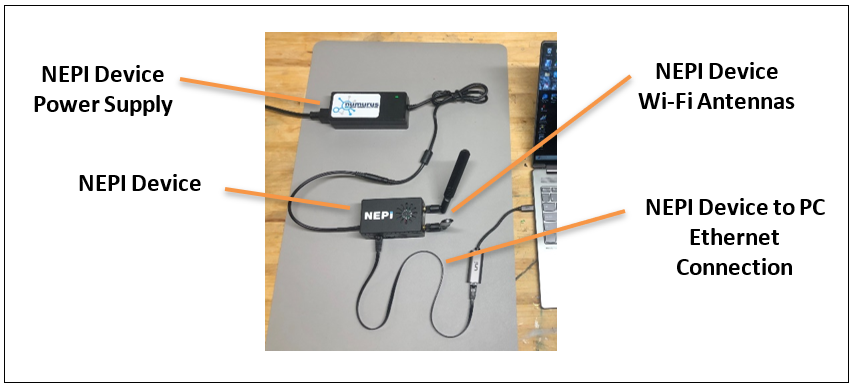
Accessing the NEPI File System
Download the NEPI default SSH Key.
1) Download the default NEPI private SSH key "nepi_engine_default_private_ssh_key" from:
The NEPI default SSH account credentials are:
- username:
nepi - password (for sudo):
nepi
Setting up and using your NEPI SSH Key
SSH password login is disabled for NEPI devices, so you'll need to install the NEPI device's private SSH key and configure your PC following the instructions in this section.
For Linux PCs
Follow the setup instructions at:
https://github.com/nepi-engine/nepi_setup/blob/main/NEPI_USER_PC_SETUP.md
NOTE: After completing setup, a number of useful command line shortcuts will be installed. You can view all of these by typing
nepihelpin your PC's terminal.
You can ssh and sftp into a running NEPI software using sshn and sftpn command line shortcuts.
If your NEPI software is running in a container, you can ssh into the container host's OS using sshnh command line shortcut.
For Mac PCs
Both Linux and Mac PC operating systems support direct SSH connections from system terminals. Follow the instructions below to SSH into your NEPI system from either of these platforms.
1. Create a new folder on your PC to store the NEPI ssh key you downloaded and copy the ssh key into that folder (the remaining instructions assume "~/ssh_keys"), then open terminal in the folder you copied the key to and change permissions for the key:
mkdir ~/ssh_keys
cd ~/ssh_keys
wget 'https://www.dropbox.com/scl/fi/t1qcizpfjohqhlwls8il7/nepi_engine_default_private_ssh_key?rlkey=tunjq4u0qim6u2qzfwjnizui3&st=t6m7a6fe&dl=0' -O nepi_engine_default_private_ssh_key
sudo chmod 600 nepi_engine_default_private_ssh_key
3) In the same terminal, start an SSH session to your NEPI device by entering the text below:
ssh -o StrictHostKeyChecking=no -p 2222 -i ~/ssh_keys/nepi_engine_default_private_ssh_key nepi@192.168.179.103You can add useful aliases to your system that make connecting faster and easier with the following instructions:
4) Add the following line to your PC's "hosts" file by opening a terminal on your PC and typing:
sudo nano /etc/hostsa) Add the following line to your file, replacing the items with your actual system values:
<IP Address of your NEPI-enabled device> <Name of your NEPI device>b) The factory IP address for NEPI devices is "192.168.179.103":
192.168.179.103 nepiNOTE: If you have multiple NEPI devices on the network with different IP addresses, add a line for each with a unique name (i.e.,
192.168.179.103 nepi-robot1,192.168.179.104 nepi-robot2).
d) Press "Ctrl-x", then "Y", then "enter" to save and exit.
5) Open your terminal shell startup file:
For Mac: nano ~/.zshrc
Add the following lines to the end of the file:
# Load Nepi Aliases File.
if [ -f ~/.nepi_aliases ]; then
. ~/.nepi_aliases
fi
b) Change to your home folder and download the 'nepi_pc_aliases' sh file using the commands below:
cd ~/
wget 'https://www.dropbox.com/scl/fi/psgzxxd99o6za30bnpha1/nepi_pc_aliases?rlkey=uwuw8p6xw4fsy7u6cz3thelnb&st=zwq3oy1y&dl=0' -O .nepi_aliases
source ~/.bashrc
Type 'nepi' at the command line to see a list of available terminal aliases:
nepiNOTE: The
sshnandsftpnaliases are the primary shortcuts for connecting to your NEPI device. If you have multiple devices, add aliases with unique names for each device.
6) Open a new terminal and test the ssh and sftp shortcuts:
sshn
sftpn
For Windows PCs
If you need to access the NEPI file system on Windows, you will first need to install a remote terminal application like PuTTY and create a PuTTY compatible key from the provided "nepi_engine_default_private_ssh_key" private key file.
NOTE: There are many alternative SSH-capable terminal emulators on Windows that do not require the key-translation step. These include git-bash, cygwin, wsl2, and many terminal emulators included in software IDEs.
1) Create a new folder on your PC to store the NEPI ssh key you downloaded and copy the ssh key into that folder (the remaining instructions assume "C:\ssh_keys").
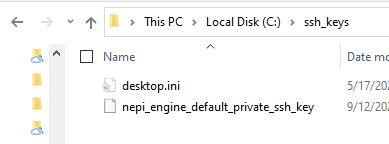
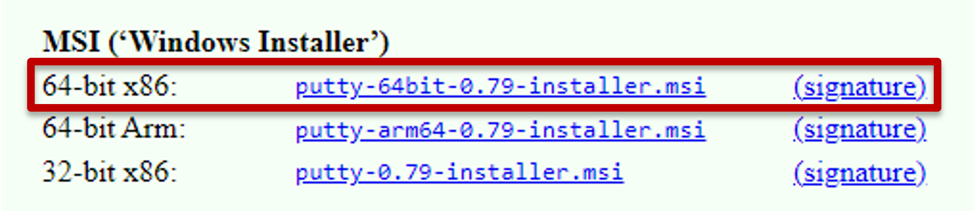
2) Download PuTTY from: https://www.chiark.greenend.org.uk/~sgtatham/putty/latest.html and install the software using the default install instructions.
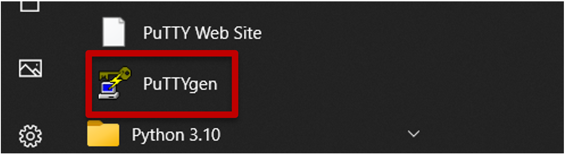
3) From your Windows Start menu, select the PuTTYgen application, which you will use to convert the NEPI key you downloaded to a PuTTY compatible key.
4) From the PuTTYgen application window, click the "Load" button.

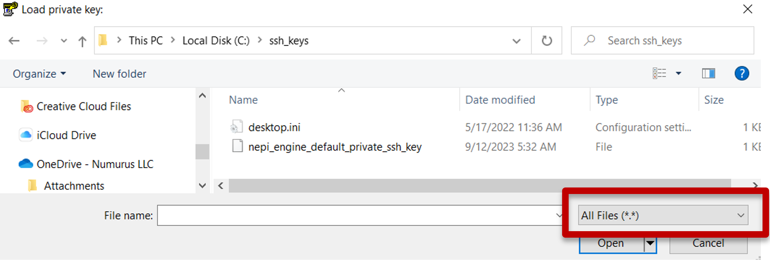
From the open popup window, do the following:
a) Navigate to your new ssh_keys folder.
b) Select the "All Files (*.*)" option in the drop-down menu just above the "Open" button.
c) Select the "nepi_engine_default_private_ssh_key" in the file list and hit the "Open" button.
d) Click the "OK" button.
e) Next, select the "Save private key" button, and click "Yes" in the popup window.

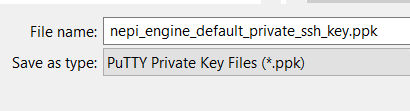
f) From the save popup window, enter the following file name to save your new PuTTY compatible SSH key as "nepi_engine_default_private_ssh_key.ppk", and click the "Save" button.
You can now close the PuTTYgen application.
5) Open the PuTTY application from your Windows Start menu.

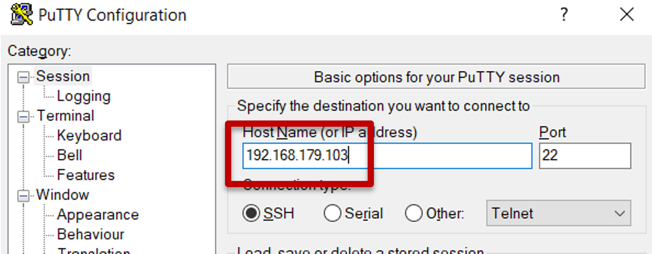
a) Enter the IP address of your NEPI device in the "HostName" entry box. NEPI default IP address is "192.168.179.103".
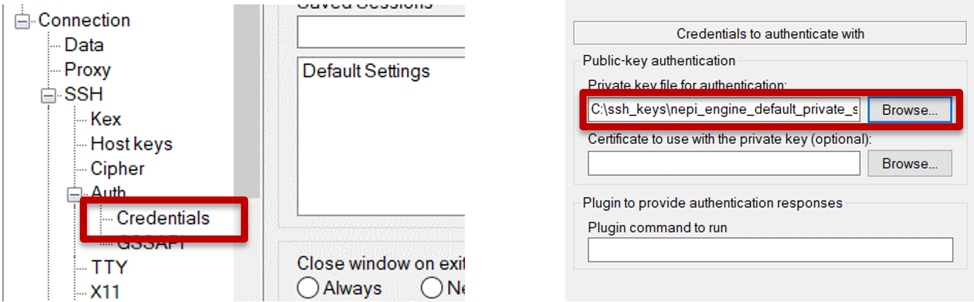
b) From the left menu list, expand the "SSH" then "Auth" menu items and click on the "Credentials" option, then click the "Browse" button and select the newly saved key from your ssh_keys folder.
c) Click the "Session" option at the top of the left menu list, enter the name "NEPI" into the Saved Sessions entry box, and click the "Save" button to save your NEPI PuTTY configuration. Click the "Open" button at the bottom of the application to open an SSH connected terminal to your NEPI device.
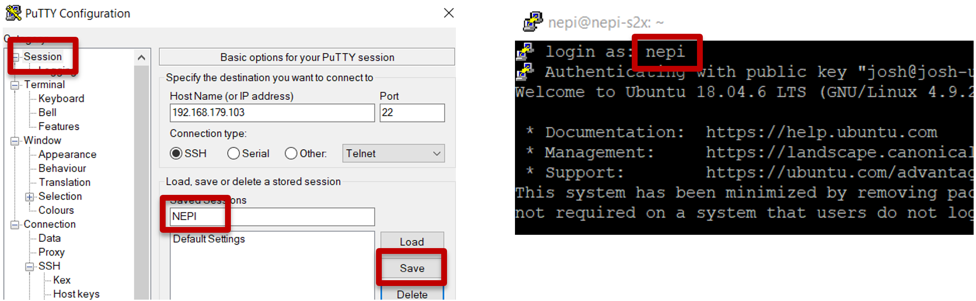
You now have an SSH connected terminal to your NEPI file system.
Navigating the File System
The majority of the NEPI file system files you would want to work with are located in a few key folders on the NEPI device.
NEPI File System Locations
| NEPI Folder | Description |
|---|---|
| /mnt/nepi_storage | The NEPI network shared user storage drive containing folders for AI models, automation scripts, logged data, user config files, NEPI image install and archiving, and more. |
| /opt/nepi | The main NEPI software package installation folder containing the NEPI ROS environment, NEPI Resident User Interface (RUI) files, and NEPI Link remote server communication subsystem used for the NEPI Connect application. |
Navigating the NEPI File System
NOTE: This step should be done on your NEPI DEVICE in an SSH connected terminal.
a) SSH into your NEPI device and take a look at your NEPI device's pre-configured aliases by typing the following command:
nepib) You can navigate to common NEPI folders using the following command line aliases within your SSH session.
Example: Typing 'api' in an SSH connected terminal will take you to the NEPI file system '/opt/nepi/ros/share/nepi_apps' folder.
Common Nepi User Storage Folders:
cfg= /mnt/nepi_storage/user_cfgai= /mnt/nepi_storage/ai_modelsauto= /mnt/nepi_storage/automation_scriptsdata= /mnt/nepi_storage/datainstalls= /mnt/nepi_storage/installssrc= /mnt/nepi_storage/nepi_srctmp= /mnt/nepi_storage/tmp
Common NEPI File System Folders:
aifs= /opt/nepi/ros/share/nepi_aifsapi= /opt/nepi/ros/lib/python3/dist-packages/nepi_apiapps= /opt/nepi/ros/share/nepi_appsdrivers= /opt/nepi/ros/lib/nepi_driversetc= /opt/nepi/ros/etclib= /opt/nepi/ros/libmanagers= /opt/nepi/ros/lib/nepi_managersros= /opt/nepi/rosnfi= /mnt/nepi_storage/nepi_full_imgnfia= /mnt/nepi_storage/nepi_full_img_archivepython= /opt/nepi/ros/lib/python3/dist-packages/rui= /opt/nepi/nepi_rui/src/rui_webserver/rui-app/srcsdk= /opt/nepi/ros/lib/python3/dist-packages/nepi_sdk